


Best Recurring Deposit Interest Rates: Top Bank Comparison
The interest rate offered by banks on RDs depends on factors like which category you fall under and the tenure you choose. Most banks offer senior citizens a higher rate of interest when compared to regular citizens.

You will earn interest on the invested amount as per the interest rate offered by the bank with which the Recurring Deposit account is opened.
Overview of Recurring Deposit Rates
Particulars | Details |
Rate of Interest | 4.75% to 8.50% |
Minimum Amount of Deposit | Rs 10 (Post Office RD) |
Investment tenure | 6 Months to 10 Years |
Compounding Interest frequency | 3 Months |
Withdrawal prior to maturity | Not Allowed |
Premature closing of RD | Allowed with penalty |

RD Interest Rates for General and Senior Citizens
Bank | RD Interest Rates (General Public) | RD Interest Rates (Senior Citizen) |
6.00% to 7.00% | 6.50% to 7.50% | |
4.75% to 7.20% | 5.25% to 7.75% | |
7.00% to 7.25% | 7.50% to 7.75% | |
6.00% to 7.40% | 6.50% to 7.90% | |
5.75% to 7.20% | 6.25% to 7.85% | |
5.75% to 7.25% | 6.25% to 7.75% | |
6.05% to 7.30% | 6.55% to 7.80% | |
6.25% to 7.00% | 6.75% to 7.50% | |
6.15% to 7.25% | 6.65% to 7.75% | |
4.75% to 7.25% | 5.00% to 7.75% | |
5.75% to 7.30% | 6.25% to 7.80% | |
4.90% to 7.25% | 5.40% to 7.75% | |
7.25% to 8.00% | 7.75% to 8.50% | |
4.50% to 7.85% | 5.25% to 8.35% | |
5.50% to 7.30% | 6.00% to 7.80% | |
6.00% to 7.50% | 6.50% to 8.00% | |
6.50% to 7.25% | 7.00% to 7.75% | |
5.75% to 7.40% | 6.25% to 7.90% | |
5.85% to 7.99% | 7.25% to 8.25% | |
6.00% to 7.40% | 6.60% to 7.80% | |
5.75% to 7.25% | 6.25% to 7.75% | |
5.00% to 7.25% | 5.50% to 7.75% | |
6.00% to 7.50% | 6.00% to 8.00% |
RD Interest Rates: Up to 3-Year Tenors
Banks | 1 year | 3 years |
6.80% | 6.75% | |
6.70% | 7.20% | |
6.60% | 7.00% | |
7.10% | 7.00% | |
6.70% | 7.10% | |
6.85% | 7.25% | |
6.80% | 7.05% | |
6.80% | 6.50% | |
6.85% | 6.80% | |
6.10% | 6.25% | |
6.90% | 6.50% | |
6.75% | 6.50% | |
7.25% | 7.25% | |
7.85% | 7.25% | |
6.80% | 6.50% | |
6.50% | 6.50% | |
7.00% | 6.50% | |
7.00% | 8.00% | |
6.75% | 6.50% | |
6.80% | 7.00% | |
7.75% | 7.25% | |
7.10% | 6.50% | |
6.20% | 6.00% | |
7.25% | 7.00% | |
6.70% | 6.70% | |
7.00% | 6.50% | |
6.50% | 6.30% |
RD Interest Rates: Up to 5-Year vs. Over 5-Year Tenures
Banks | 5 years | More than 5 years |
6.50% | 6.50% | |
7.00% | 6.90% | |
7.00% | 7.00% | |
6.20% | 6.20% | |
7.00% | 7.00% | |
6.50% | 6.50% | |
6.55% | 6.55% | |
6.50% | 6.25% | |
6.70% | 6.70% | |
6.25% | 6.10% | |
6.50% | 6.50% | |
6.50% | 6.50 | |
7.25% | 7.00% | |
5.85% | 5.85% | |
6.00% | 6.00% | |
6.50% | 6.50% | |
6.25% | 6.25% | |
6.50% | 6.50% | |
7.50% | NA | |
7.25% | 6.60% | |
6.60% | 6.60% | |
7.25% | 7.00% | |
6.50% | 5.80% | |
6.00% | 6.25% | |
6.00% | 6.00% | |
6.50% | 6.50% | |
6.20% | 6.10% |
Types of Recurring Deposit Interest Rates

1. Regular Savings RD
- For Indian citizens aged 18 and above.
- Deposit a fixed amount every month for 6 months to 10 years.
- Interest is calculated on a simple or compound basis.
- Amount can be withdrawn as a lump sum at the end of the term.
- Some schemes offer reinvestment options.
- You can start with as little as ₹10/month.
- Interest rates range from 4.75% to 8.50% p.a.
2. Junior RD Schemes
- For children and students.
- Opened by parents/guardians to save for education or future needs.
- Helps kids learn the importance of saving and money management.
- Interest is usually equal to or higher than regular RD rates to encourage savings.
3. Senior Citizens RD Schemes
- Designed for individuals aged 60 and above.
- Offer higher interest rates, typically 0.50% more than standard rates.
- Interest rates range from 5.25% to 8.50% p.a.
- Some schemes cater specifically to retirement and old-age needs.
4. NRE/NRO RD Schemes
- For Non-Resident Indians (NRIs).
- May come with lower interest rates than regular RDs.
- Senior citizens with NRE/NRO accounts are not eligible for the extra 0.50% interest.
5. Special RD Schemes
- Tailored for specific goals or needs.
- Often offer higher interest rates and added benefits.
- Examples:
- ICICI iWish: Flexible contributions; friends/family can contribute.
- Free life insurance with some RDs.
- Partial withdrawals allowed in select schemes.
- Larger lump sum payouts to meet long-term financial goals.
- ICICI iWish: Flexible contributions; friends/family can contribute.
- Free life insurance with some RDs.
- Partial withdrawals allowed in select schemes.
- Larger lump sum payouts to meet long-term financial goals.
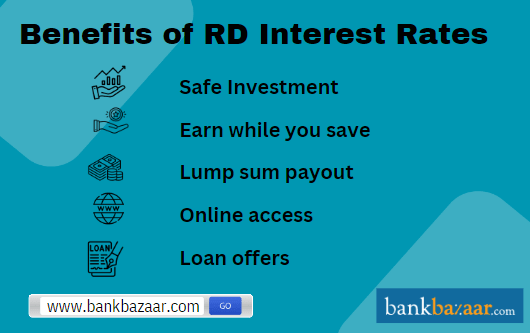
Benefits of RD Interest Rates
- Safe & Secure
- Low-risk investment option
- Fixed interest rates, not affected by market fluctuations
- Ideal for conservative investors
- Low-risk investment option
- Fixed interest rates, not affected by market fluctuations
- Ideal for conservative investors
- Earn from Day One
- Interest accrues from the first deposit
- Higher returns with longer tenures
- Interest accrues from the first deposit
- Higher returns with longer tenures
- Lump Sum Payout
- Receive total deposits + interest at maturity
- Useful for planned expenses or reinvestment
- Receive total deposits + interest at maturity
- Useful for planned expenses or reinvestment
- Online Access
- Open and manage RD accounts via internet banking
- Track progress, view interest rates, and choose suitable plans
- Open and manage RD accounts via internet banking
- Track progress, view interest rates, and choose suitable plans
- Loan Benefits
- Eligible for pre-approved or faster loans
- Some banks offer lower interest rates for RD account holders
- Eligible for pre-approved or faster loans
- Some banks offer lower interest rates for RD account holders
Factors That May Affect Recurring Deposit Interest Rates
- Type of Account
- Regular savings accounts usually earn higher interest than NRE/NRO accounts.
- Some banks offer the same rate for all account types.
- Regular savings accounts usually earn higher interest than NRE/NRO accounts.
- Some banks offer the same rate for all account types.
- Tenure (Deposit Duration)
- Interest rates vary based on how long you invest.
- Medium-term deposits often get better rates.
- Some banks offer the same rate for 1-year and 10-year deposits.
- Interest rates vary based on how long you invest.
- Medium-term deposits often get better rates.
- Some banks offer the same rate for 1-year and 10-year deposits.
- Age of Account Holder
- Senior citizens usually earn 0.5% more interest.
- Some banks also offer higher rates for minor (junior) accounts.
- Senior citizens usually earn 0.5% more interest.
- Some banks also offer higher rates for minor (junior) accounts.
- Bank You Choose
- Interest rates differ across banks.
- Private banks start around 7% per year.
- Nationalized banks may go up to 7.5%.
- Interest rates differ across banks.
- Private banks start around 7% per year.
- Nationalised banks may go up to 7.5%.
- Special RD Schemes
- Some banks have high-interest schemes with added benefits.
- Example: Corporation Bank’s “Millionaire Scheme” offers 9.25% interest.
- Your interest rate depends on the scheme you choose.
- Some banks have high-interest schemes with added benefits.
- Example: Corporation Bank’s “Millionaire Scheme” offers 9.25% interest.
- Your interest rate depends on the scheme you choose.
Features of Using Recurring Deposit
Some of the features of using a Recurring deposit article are:
- Investing in RD inculcates the habit of saving
- You can start investing with Rs.500 which is the minimum amount most banks will require you to deposit. You can also gradually increase the deposit amount
- You can open an RD account for up to 10 years
- There are banks who may allow you to prematurely withdraw the amount from your RD account
- The interest rate offered is equivalent to what is offered for a fixed deposit
- You can give a standing instructions to the bank to automatically deduct the deposit amount from your bank account every month
Eligibility Criteria to Apply for RD
The following are the eligibility criteria that should be fulfilled to apply for an RD account:
- Individual must be a savings account holder
- Minors must be more than 10 years of age
- A legal guardian must be accompanied in case the minor is less than 10 years of age
- A government organisation can open an RD account
- A commercial organization, corporate, proprietorship, or company can also open an RD account .
Documents Required to Apply for RD
The following are the documents required to open an RD account:
Identity proof:
- Passport
- Government ID card
- Ration card
- Senior citizen ID card
- Driving license
Address proof:
- Electricity bill
- Telephone bill
- Passport
- ID card or any certificate issued by the Post Office
- Bank statement with cheque
How is the Interest Under the Recurring Deposit Scheme Calculated?
The rate of interest is taken into consideration in order to calculate the recurring deposit amount. Various factors such as amount invested, tenure, etc. are taken into consideration.
The formula to calculate RD is given below:
M = R [(1+i) n – 1]/ 1 – (1+i) -1/3
In the formula,
‘M’ stands for maturity value
‘R’ stands for monthly instalment
‘n’ stands for number of quarters
‘i’ stands for rate of interest/400
Recurring Deposit vs Fixed Deposit
Fixed Deposits and Recurring Deposits are among the most popular investment options in India. If you are planning to invest in either of these, you must be aware of the differences between Recurring Deposit and Fixed Deposits. It is very common for first-time investors to get confused between RD and FD. While both Recurring Deposit and fixed deposits are offered by most of the banks in India, each comes with its own advantages and disadvantages.
Before investing in a Recurring Deposit or Fixed Deposit scheme, you must be familiar with certain important features of the scheme such as the rate of interest and investment limit.
Tax on Recurring Deposit Interest Rates
Recurring Deposit is a very popular investment scheme amongst the risk-averse Indians mainly because of the good returns and savings benefits that it offers. In a Recurring Deposit scheme, you will have to deposit a fixed amount of money every month for a predefined period of time and the amount will fetch you interest.
But, for interest that you earn on Recurring Deposit investment amounts, 10% will be deducted as TDS. Also, the Tax Deducted at Source (TDS) will be 20% if the Pan information is not provided. The Tax Deducted at Source (TDS) varies depending on your annual income, your age and the interest that you accrue on your RD amount.
Check - Tax on RD Interest Rates


FAQs on RD Interest Rates
- What is the minimum amount required for opening a Recurring Deposit account?
The minimum amount required for opening a Recurring Deposit account varies for every bank and it can be as low as Rs.10
- What will happen if I do not make my RD instalments on time?
In case you fail to make your RD instalments on time, the bank has the right to close your RD account. The interest rate applicable will be as per the premature withdrawal policy of the lender.
- What are the documents required to open an RD account?
To open an RD account, you have to submit the scanned copies of the documents like Know Your Customer (KYC) documents, identity proof, and recent passport size photographs.
- Can I cancel my RD account before the completion of the tenure?
Yes, you can cancel your RD account before the completion of the specified tenure.
- How much interest can I earn through a Recurring Deposit account?
The interest rate for Recurring Deposit differs from bank to bank. The amount of interest that you can earn depends on the amount you have deposited in the RD account, the tenure of the RD and the interest rate offered by your bank for that tenure.
- What happens if there is a change in the interest rate while I have an RD account open?
When you open an RD account, the interest rate is fixed and will not change even if the interest rates fluctuate during the term of the account. Any changes will only be effective if you book a new RD account.
- How to open an RD account offline?
You can open your RD account offline by visiting the bank branch where you have your savings account.
- What is the importance of checking Bank RD interest rate before opening an RD account?
Checking RD interest rates before opening RD account is a vital factor to consider. Opt for those banks that offer high interest rates to obtain high returns on your investment. Customers should also check for those banks that levies low withdrawal penalty in case of premature withdrawal.
- Is the RD interest rate pre-fixed?
Yes, the interest rates on RDs are pre-fixed just like fixed deposit accounts and the interest rates vary depending on the tenures. The interest rate is updated at regular intervals and the interest is compounded quarterly depending on the interest rate.
- Is interest earned on recurring deposit taxable?
Yes, the interest earned recurring deposit is taxable.
- I have an RD account. Will it be possible for me to change the tenure and instalment date?
No, once you have opened an RD account, you will not be able to change the tenure and instalment date. It will be recommended you close your existing RD account prematurely and open a new one.
- Is Tax Deduction at Source (TDS) applicable on the interest earned on Recurring Deposits?
Yes, TDS of 10% is applicable on the interest earned on Recurring Deposits. The TDS will deducted if the interest earned on the Recurring Deposits is more than Rs.10,000.
- Can I pay more than one instalment at a time?
Yes, you can make additional instalments one at a time. However, you must note that there will be no interest earned on the additional instalment.
- Do senior citizens get additional interest rates on an RD account?
Yes, most banks offer additional interest rates on an RD account for senior citizens.
- Is the Post Office RD the same as any other bank-offered RD?
Although the RD accounts provided by banks and the Post Office have the same basic functionality, there may be some variations in certain policies and rules.
- Are RD interest rates compounded quarterly?
Yes, RD interest rates are compounded quarterly.
- Can I make use of the RD Calculator?
Yes, you can use the RD calculators available on the official websites of various banks. By entering the desired amount and the repayment period into the RD calculator, you can determine the total amount you will receive when the loan matures.
- Is 5 years Recurring deposit tax-free?
Under Section 80C of the Income Tax, 1961, investments in bank RD are not eligible for a tax exemption. Therefore, investing in any of the bank's recurring deposits is not tax deductible. However, a five-year post office term deposit qualifies for a tax deduction under Section 80C of the Income Tax Act of 1961.
- Are SIPs/Mutual funds better than RD?
SIPs are subject to market risks, whereas RDs are risk-free investments. When compared to RDs, mutual fund SIPs have higher potential returns. Over RD, mutual funds also enjoy a sizable tax advantage.
- Which one is preferable, RD or FD?
FD appears to offer higher returns when returns in FD and RD are compared. The reason is that interest is paid out in accordance with the amount of money that the account holder deposits each month into the RD. In most cases, the FD amount is deposited just once in a lump sum and earns a higher interest rate.
- What drawbacks are there to RD?
There are no returns if you withdraw during the lock-in period. Premature and partial withdrawal are subject to requirements and are subject to a penalty. The monthly payment amount is set. Comparing interest rates to other investment products, they are lower.
- Can I use the same bank account to open two RD accounts?
Yes, recurring deposit accounts can be opened in the same bank using your savings account.
- What is the longest possible RD tenure?
An RD account typically has a tenure of between six months and ten years. The maximum period for an RD is ten years.
- What happens when the RD matures?
The entire RD amount along with the interest is paid in full to the linked savings account on the day the RD account matures.
- What is the penalty levied on missed payments?
On missing the monthly instalments on RD account, depositors will have to pay a penalty amount of Rs.1.50 per Rs.100 per month.
- How is the maturity amount on RD calculated by the banks?
The maturity amount on RD is calculated after considering some of the vital factors such as the instalment amount, tenure, and account type chosen by the depositor.
- What is the nomination facility in an RD account?
The recurring deposit accounts enable depositors to select nominees so that in case of sudden demise of the account holder, the nominees get the entire RD amount. The bank allows one nominee per RD account even if it is joint RD account.
- What is a Flexi RD account?
Flexi Recurring Deposit accounts are those RD accounts where depositors can deposit any amount higher than that what is contracted and continue that amount till maturity. Some bank even does not charge penalties on skipping instalments as well.

Disclaimer
Credit Card:
Credit Score:
Personal Loan:
Home Loan:
Fixed Deposit:


Copyright © 2026 BankBazaar.com.